Experiencing screen flickering on your Windows computer? Don't worry, it's a common issue, and there are several ways to fix it. Here's a straightforward guide to help you solve the problem.
Perform a Simple Test
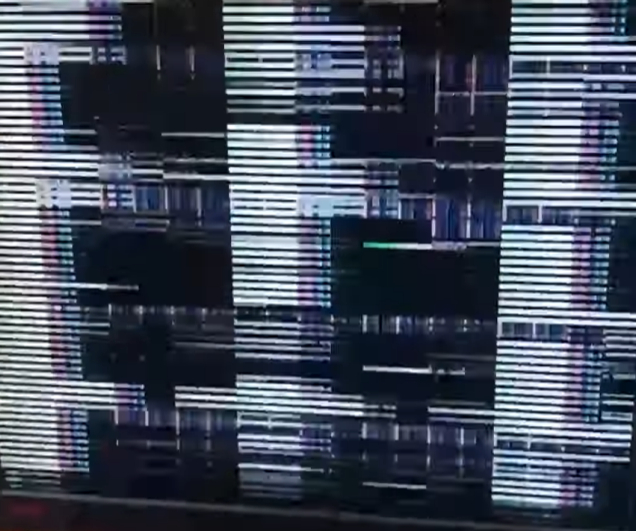
Open Task Manager by pressing Ctrl + Shift + Esc. Don't use it; just keep it open and watch your screen.
If everything, including Task Manager, flickers, it's likely a hardware or driver issue. If only other things flicker, but Task Manager doesn't, an application might be the problem.
Steps to Fix Flickering
- Check Monitor Cables: Loose or damaged cables can cause flickering. Reconnect your monitor cables firmly. Try a new cable if possible, especially if your current one is old or damaged.
- Try Another Monitor: If you can, connect a different monitor to your computer. If the flickering stops, your original monitor might be the issue.
- Run a System File Check (SFC):
- Open Command Prompt as administrator by searching 'cmd' in the start menu.
- Type 'sfc /scannow' and press Enter.
- Let the scan complete and then restart your computer.
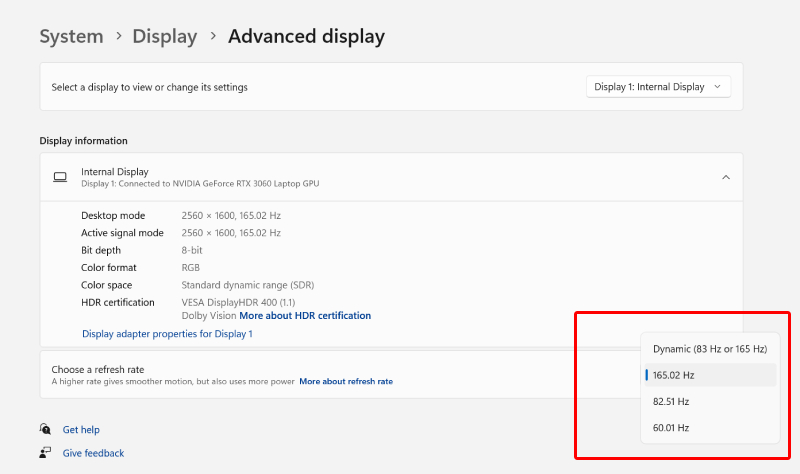
- Adjust Refresh Rate:
- Go to Settings (Win Key + I), then System > Display.
- In Advanced Display settings, try lowering the refresh rate using the dropdown menu. If flickering persists, set it back to the recommended rate.
- Reset Display Driver:
- Boot in Safe Mode (Restart and choose Troubleshoot > Advanced options > Startup settings > Restart, then select Safe Mode).
- In Device Manager (Win Key + X), uninstall the display driver under 'Display adapters.'
- Restart and update the driver through Windows Update or your graphics card's website.
- Reset Graphics Card:
- Turn off your PC and disconnect all cables.
- Open your computer case and reseat the graphics card.
- Be cautious with this step. If unsure, seek professional help or contact the manufacturer.
- Uninstall Problematic Apps:
- In Settings (Win Key + I), go to Apps and find any recently installed or updated apps that might be causing issues.
- Uninstall the app and restart your computer.
- Disable Certain Windows Services:
- Open the Run dialog (Win Key + R), type 'services.msc', and press Enter.
- Find 'Problem Reports and Solution Control Panel Support' and 'Windows Error Reporting Service' and stop them.
- Check if this stops the flickering.
Remember, flickering can be caused by various factors, so you might need to try a few of these steps to find the right solution. If these steps don't work, consider reaching out to a professional or the manufacturer for further assistance.
Comments